Introduction: The Invoice That Helped Me See Things Differently
My first Invoice designed in Canva was really beautiful – to my eyes, at least.
Since then, I have been trying out different Canva invoice templates while designing invoices for various freelance projects, digital products and services, and small businesses. During the process, I learned that clients never praise elaborate visuals. What they like is a properly structured and clear invoice.
Your Invoice is your face to your client. Not only does it represent your professionalism, but also the level of attention you put into your work. Little details play a key role in whether clients understand your Invoice at first glance, require clarification, and in the impression they get of your business.
This is precisely why I decided to create this guide.
In contrast to other guides that feature random collections of invoice templates to highlight the common errors people usually overlook. These are the errors I make myself and see in most Canva invoices found online. Most of them are easy to fix if you know about them. It featured cool colors, elegant fonts, and a layout that fit my brand perfectly. I saved it as a PDF, attached it to an email, and sent it to my customer after finishing a small design project.
Several hours passed, and I received a very simple message from the client.
“Is it possible for you to resend me the invoice? I am not able to see the payment due date.”
I opened my file and right away found what the problem was – in my desire to make it beautiful, I forgot about the most critical parts. Payment terms were tiny, the invoice number was barely visible, and the whole layout was not very convenient.
It was not the worst mistake ever, since the payment was still received on time, but it definitely helped me understand how to approach invoice design.
Whether you are a freelancer creating your first invoice, a consultant handling several clients, a photographer, a designer, or an entrepreneur running a small business, this article will help you create well-formatted invoices that look professional and convey the right message clearly.
Upon completion of this article, you will be able to learn how to select Canva invoice templates better, how to avoid design mistakes, increase the readability of your invoices, and create invoices that enhance your business rather than hinder it.
What Are Canva Invoice Templates?
If you have ever tried to find an easy method of generating a professional invoice without having to use complicated accounting software, then Canva invoice templates can be the best place to start.
These are pre-made invoice templates you can use in Canva to create your own invoice. Rather than designing an invoice from scratch, you select a suitable layout, add your information by replacing the placeholder text, and change the font and color scheme if required, and then convert it into the format for your client.
There are several reasons I like using Canva to create invoices. It saves time but does not make my invoice generic, since even a simple template becomes distinctive once the logo and other elements are added.
Canva has several kinds of templates depending on the nature of the business. There are simple templates for freelancers, stylish templates for creative agencies, elegant templates for consultants, and plain invoice templates that will work great for service-oriented businesses.
Nevertheless, choosing a visually appealing template is just the first step.
Throughout my life, I have noticed that people tend to spend more time choosing colors than verifying that an invoice conveys the necessary information. It should provide customers with clear information about the person issuing the bill, the service provided, its price, and the payment deadline. When these points become hard to find, any appealing design becomes useless.
The second benefit of the templates available on Canva is their flexibility. One can design invoices for various types of work without having good design skills.
One can easily make:
- An invoice for freelance writing projects.
- An invoice for graphic design services.
- An invoice for a digital marketing agency.
- An invoice for consultations for business clients.
- An invoice for a photographer.
- An invoice for local businesses.
Each enterprise has its own requirements; thus, there is no template suitable for all businesses. The best Canva invoice template is the one that conveys your enterprise’s information in style.
It’s also important to know how Canva works for your needs.
If you send invoices frequently, you can consider using Canva, as it’s a perfect solution for designing branded documents. However, if you deal with invoices regularly or need automated tax calculation and other features of invoice management systems, specialized software will be more beneficial for you.
Many freelancers, entrepreneurs, and creators choose Canva for its high-quality design and easy navigation. The main point here is to learn how to use templates correctly, as this is where people often unknowingly make mistakes.
You May Also Like: Canva AI Presentation: How I Create Professional Slides Faster (Complete 2026 Guide)
Why Invoice Design Is Important When Most People Forget About It
Whenever someone thinks about invoices, the design is probably the last thing that comes to mind.
Business people are interested in making money, not in choosing the right font, appropriate spacing, or text alignment. This was my case too before I realized that a poorly designed invoice raises unnecessary questions.
There should be no need for your client to look for the total cost, payment due date, and payment methods. How easily your invoice can be understood affects the ease of the payment process.
Picture two freelancers that charge the same rate for the same service.
One of the freelancers provides his client with a well-organized invoice that includes a clear business name, a concise description of the services, and clear payment options.
The other freelancer provides an invoice with varied font styles, poorly organized sections, uneven spacing, and no payment instructions.
Without even looking at all the details, most clients automatically feel more confident about the first invoice because good organization shows care.
I have had such an experience when working on design projects with clients. Every time I provided my clients with an easy-to-understand invoice, fewer questions followed. My clients always knew what they were being charged for and how to make the payment.
Good invoice design will also positively affect your brand.
The documents sent out by your company represent your company, and using a proper logo, legible fonts, proper alignment and balance, and a good layout will help establish your brand’s positive reputation.
Another advantage of good invoice design is accuracy.
Invoices with a proper structure will make it much easier to review the service description and pricing. This simple step can save both you and your clients a lot of time.
A lot of people think that invoices have only one function – to collect payments. However, that is not true; invoices are part of the client experience. A good invoice helps to avoid confusion and build trust.
This is why selecting the right Canva invoice template will only be the start. Skill in using the chosen template will play a key role.
Before Customizing Any Canva Invoice Template
Before we discuss common mistakes, there’s been one thing that has saved me from sending incomplete invoices many times over.
Every time I finish customizing a Canva invoice template, I pause to look at it with fresh eyes. Instead of asking myself, “Is this invoice good?”, I ask another question.
“Would I be able to clearly see all necessary information, even though this is my first time seeing this invoice?”
It is a small trick that helps me see some of the missing pieces of information that I might have overlooked while customizing this invoice for a very long time.
A professional invoice should answer any question that might pop into the client’s mind.
Before downloading an invoice as a PDF, pay attention to the following details.
Business Information
Your invoice must contain:
- Name of the business
- Logo
- Phone number (optional)
- Website
- Address of the business (optional)
It must be easy for a client to identify whose invoice it is.
Client Information
Make sure you have:
- Client’s Name
- Company name
- Billing address (if necessary)
- Client’s email
Using the client’s wrong name shows that you are careless.
Invoice Information
Don’t forget to add:
- Invoice number
- Invoice date
- Date by which the payment is due
- Currency
- Status of the payment (if necessary)
It helps to keep track of your invoices in the future.
Service Breakdown
Avoid using phrases such as:
“Design services.”
Instead, use something more detailed.
Such as:
- Social media graphic designs
- Website banner design
- Logo revision
- Presentation redesign
Specific information saves time by avoiding unnecessary questions.
Payment Information
Never take it for granted that your client already knows how to pay you.
Make sure that you include:
- Bank account information
- UPI ID
- PayPal
- Stripe payment link
- Other payment methods you prefer
The easier you make the process of paying you, the faster clients will actually pay you.
Final Review
Check the following things before you send your invoice.
- Numbers
- Dates
- Spelling
- Client’s name
- Total amount
- Tax calculations if necessary
- PDF formatting
It usually takes no more than two minutes, but it might save you from having to make revisions later.
10 Invoice Design Mistakes That May Cost You, Clients
I started using Canva templates for my invoices thinking that all you had to do was make them look nice and modern.
After processing many invoices for different freelance jobs and reviewing templates used across various industries, I came to understand something.
Your client doesn’t care if you use trending colors or decorations.
He wants his invoice to be clear.
Here are mistakes that I have seen or made myself while designing my invoices in Canva. They may not seem very important at first.
Mistake #1: Style vs Readability
Probably this was the biggest mistake I made during my first few invoices.
I saw an invoice template that seemed too fancy.
It had a great font style, beautiful background images, and some nice headings. It was a template that looked really nice.
When I exported it as a PDF and opened it on my phone, the text became hard to read.
The total amount became blurred with the background.
The payment instructions were barely visible because of the color combination used.
This mistake helped me understand one thing – professional invoices must always be easier to read rather than to admire.
Many Canva invoices are designed to look pretty and catch users’ eyes in the template library. It does not necessarily mean that they are the right ones to use in business communications.
Why It Happens
By default, people tend to pick up templates just by their looks.
Modern design looks more appealing than a simple one.
However, invoices are business documents, not posters.
How to Fix It
Select templates that:
- Have clear headings
- Use legible font sizes
- Contrast well
- Are balanced in white space
- Have simple layouts
While you are checking your Invoice, make sure the key data pops at first glance.
Your client should instantly spot:
- The name of your company
- Your invoice number
- The total amount
- The due date
- The payment terms
These things must never conflict with decorative aspects.
Practical Tip
I generally check my invoices zoomed out to around 50%.
If I can instantly see the total amount and the payment due date, the design works.
If not, the client most likely won’t be able to either.
Mistake #2: Not Including Essential Business Information
Another common mistake is assuming clients will know your business information.
This usually occurs with recurring clients.
I once forgot to update my bank account info when sending an invoice because of a change in my bank account.
They had contacted me before transferring the money since the account was different from those on previous invoices.
This made me realize that invoices should be self-explanatory.
A good invoice needs to include all essential business information, even if you have worked with them numerous times. before
Essential Information That Needs to Be Included
- Business name
- Email address
- Phone number
- Website
- Business logo
- Tax information if needed
- Registration information if needed
- Why It Is Necessary
Clients usually keep invoices for accounting purposes.
After months have passed, they might require identification of the one sending the invoice without having to open previous emails.
Including your business information makes it much easier for them.
It also helps build professional branding.
How to Fix This Problem
Make a single Canva invoice template that includes all your company information.
Next time you duplicate your template, you’ll have to update only the following:
- Customer information
- Invoice number
- Services offered
- Prices
- Date
It will save some time and reduce the risk of forgetting something important.
Mistake No. 3: Applying Too Many Fonts and Colors
There are literally thousands of fonts and colors to play with in Canva.
It is absolutely perfect for creating posters, presentations, and social media images.
It is not ideal for creating invoices.
There are invoices where I’ve noticed up to four fonts, various colors, and decorative elements like icons and shapes used as backgrounds.
Such invoice templates distract from the information rather than making it look more attractive.
Reasons Behind This
Most businesses want their invoices to look exactly like their brand.
Thus, they incorporate:
- Different font styles
- Highlighting colors
- Graphics
- Complicated background designs
Every element adds to the confusion when reviewing the invoice.
Better Design Strategy
Generally, I keep things straightforward on my invoices.
- One heading font.
- One body font.
- One main brand color.
- Lots of white space.
This strategy always delivers professionally looking documents.
Practical Example
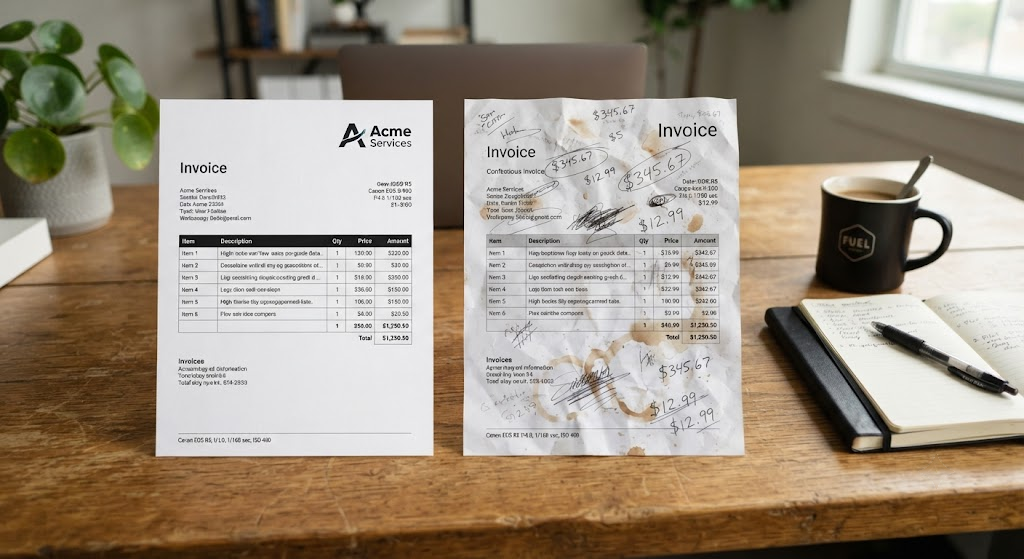
Now imagine that you get two invoices.
The first one utilizes five colors and different fonts.
The second invoice is prepared in a single font, with appropriate headings and formatting.
Of course, most people would tend to believe the second one looks more professional and trustworthy.
Professional invoicing design generally does not involve extra elements.
You May Also Like: Canva Portfolio Templates: 10 Practical Tips to Choose the Right Design (2026 Guide)
Mistake #4: Poor Design Hides Important Data
A few months ago, I got an invoice from a vendor whose layout seemed very professional at first glance. The colors matched the brand; the logo was perfect. Everything seemed to be in place.
However, when I needed to find out how much time I had before the payment was due, I had to scroll through the entire page.
The invoice number was on one end.
The total amount was somewhere in the middle.
The payment instructions were at the bottom in small print.
It was not incorrect in any way, but it took too long to locate the important data.
This made me realize that the main point of a good invoice is not only its beautiful design but also the clarity of the information provided.
What Makes This Happen
People create invoice templates in Canva while ignoring their clients’ needs.
Sections may be shifted, text resized, or additional design elements added until an imbalance occurs.
In such cases, the document ends up looking cluttered and disorganized.
What You Can Do About It
Organize your invoice in a clear structure.
This works best for almost all types of businesses.
- Business details
- Customer details
- Invoice details
- Services offered
- Invoice total
- Payment terms
- Any other additional information
Ensure there is enough white space between sections so the document looks neat.
Tip for Success
Scroll through your invoice before exporting it.
When your eyes land immediately on the invoice number, total, and due date, you know your work is done.
Mistake #5: Payment Terms are Missing or Confusing
The simplest reason why clients don’t pay on time may surprise you.
The client isn’t certain when the payment is due.
In the early days of my freelancing experience, I believed all clients would pay within a week. As a result, I sometimes forgot to state the payment deadline.
Some paid right away.
Others took weeks to do that, thinking there was no rush.
Not on purpose, but just because my invoice didn’t convey my expectations clearly.
What Payment Terms Must Contain
Any invoice must contain the following information:
- Date of payment
- Accepted ways of payment
- Currency
- Reference number if required
- Your company’s late payment policy, if you have it
The clearer your payment terms are, the less follow-up you will need to do.
Real Life Example
Let us consider that we get two invoices.
The first one will have the total cost.
The second one will state:
- Payment Due: 15th August 2026
- Payment Mode: Bank Transfer or UPI
- Kindly mention Invoice No. INV 104 at the time of payment.
Which is the easier way to make the payment?
These small things help create a better client experience.
My Recommendation
Always use clear statements like:
“Please pay soon.”
Always make sure that you use specific data.
Your clients prefer the truth over assumptions.
Mistake 6: Using Poor Quality Logos and Images
Branding can greatly help you, provided it is done professionally.
Once I used the company logo of an old social media account just because it was readily available.
While designing the Invoice on Canva, everything appeared perfect.
But after saving the file as a PDF, I realized the logo was blurry.
This small problem made me understand that visuals matter a lot.
Common Issues
Most invoices contain:
- Blurry logo
- Pixelated signature
- Distorted images
- Low-quality graphics
It may negatively affect the overall look of an otherwise high-quality invoice.
How to Solve
Whenever possible, upload:
- High-res logo
- PNG logo
- Signature if needed
Do not enlarge images, as Canva cannot improve their quality.
Simple Guideline
Replace blurry logos if they become hard to see when you zoom into the invoice PDF.
Mistake 7: Not Realizing That Most Clients Read Invoices on Their Mobile Phone
This issue has been completely missed during the first stage.
I usually checked invoices on a PC.
Once, I received feedback from the client that some descriptions were too small to read on his phone.
Out of curiosity, I opened the same Invoice as a PDF on my mobile phone.
The client was right.
The font looked very small to me.
Some columns were too close together, and the in-text payments were too small to read without a magnifying glass.
After that, checking the invoices on both desktop and mobile became my routine.
Why Mobile Is Crucial
Many entrepreneurs, business managers, and freelancers check their emails when they’re on the move.
Which means that your Invoice may initially be checked from:
- Smartphone
- Tablet
- Mini-laptop
And if your design isn’t responsive to a large monitor, some of your clients may have difficulty checking your Invoice.
How to Make Your Invoice More Readable on Mobiles?
Use:
- Big body text
- Proper spacing
- Simple tables
- Short descriptions of your services
Don’t try to put too much information on one page.
If needed, make your Invoice take more than one page rather than shrinking the font size.
Personal Rule
Every time I’m going to send an invoice, I first check it on my phone as a PDF file.
It takes me about one minute, but this little trick helps me spot potential problems with spacing and readability.
Mistake 8: Keeping Placeholders in the Template
This mistake seems to be very common, especially when you are in a rush.
All invoice templates on Canva include placeholders to illustrate the correct design.
You may come across placeholder text like:
- Name of Your Business
- Business Address
- Sample Service
- Lorem Ipsum
- Sample Email
If you fail to edit any of these areas, it will automatically reduce the professionalism of your Invoice.
Once, while copying an old invoice template, I nearly forgot to update my client’s company name. Luckily, I caught my mistake before sending the Invoice. Otherwise, it would lead to unnecessary misunderstanding and make me appear sloppy.
Things to Verify Before Exporting
Run through the Invoice one last time and ensure you have edited:
- Business name
- Name of the client
- Invoice number
- Date of Invoice
- DInvoice
- Description of services
- Rates
- Contact information
- Payment instructions
- Additional notes/terms
- Make a Personal Invoice Template
There is one trick that has helped me a lot with invoices.
Mistake #9 – Sending Out an Invoice Without Proofing It First
After completing an invoice, it is natural to export the file and send it straight away. That is something I used to do, particularly during my busy days working on multiple projects simultaneously.
One day I completed an invoice for one of our regular clients and moved on to another job. An hour or two later, I got an email noting that the total amount didn’t match the individual service prices.
Although it was just a miscalculation, I still had to redo the Invoice and apologize.
This episode taught me that regardless of how nicely designed an invoice might be, its accuracy is what makes it credible.
Common Errors I Have Encountered
In the course of my own work as well as analyzing the invoices, here are the most frequent mistakes encountered:
- Name of the client
- Wrong invoice number
- Incorrect spellings of services provided
- Incorrect prices
- Missing payment method
- Incorrect payment due date
- Outdated information about the company
All these mistakes can be easily avoided with a quick review before sending out the Invoice.
My Invoice Proofreading Procedure
Before exporting the document into PDF, I do a quick check for:
- Name of the client
- Invoice number
- Dates
- Descriptions of the services provided
- Prices
- Total amount
- Information on how to make payments
- Contact details
The whole process takes no more than 2 minutes; however, it will help avoid extra corrections in the future.
Practical Tip
There is one very simple way to proofread an invoice – read it from thefrom the bottom of the page to the top.
Mistake 10: Choosing the Wrong Canva Invoice Template for Your Business
One of Canva’s biggest strengths is the variety of invoice templates available. The challenge is choosing one that actually fits your business.
Not every template is suitable for every profession.
A colorful invoice designed for a creative illustrator may not create the right impression for a legal consultant. In the same way, a very formal corporate layout may feel too plain for a wedding photographer or a graphic designer.
Your invoice should reflect your business’s personality while remaining professional and easy to read.
Choose a Template That Matches Your Industry
Here are a few examples.
| Business | Recommended Style |
|---|---|
| Freelancer | Clean and minimal |
| Graphic Designer | Modern with subtle branding |
| Consultant | Professional corporate layout |
| Photographer | Elegant portfolio-inspired design |
| Digital Agency | Contemporary business style |
| Small Business | Simple and organized |
| Coach | Friendly but professional |
| Contractor | Clear itemized layout |
The goal is not to impress clients with decorative graphics.
The goal is to help them understand your invoice quickly while reinforcing your brand.
My Advice
If you are unsure which template to use, start with the simplest design.
Simple layouts rarely become outdated and usually work well across different industries.
You May Also Like: 25+ Essential Canva Keyboard Shortcuts for Windows, Mac & Web to Work Faster (2026 Guide)
How I Modify Canva Invoice Templates
With Over, I have developed a simple process that ensures the invoices I generate remain consistent.
Instead of starting from scratch with every single Invoice, I duplicate an invoice template preloaded with my branding.
Here is my process:
Step 1
Duplicating my master invoice template.
Step 2
Updating the customer’s details.
Step 3
Inserting the work done.
Step 4
Verifying the prices and calculating the total amount.
Step 5
Checking the payment details.
Step 6
Generating the Invoice as a PDF document.
Step 7
Viewing the PDF on my computer and phone for readability.
Step 8
Sending the Invoice via email.
This way, I have managed to minimize errors while generating an invoice.
Best Canva Invoice Template Styles for Different Businesses
Every business communicates differently, and your invoice should reflect that.
| Business Type | Recommended Template | Why It Works |
|---|---|---|
| Freelancer | Minimal | Clean and easy to understand |
| Consultant | Corporate | Builds trust and professionalism |
| Digital Agency | Modern | Reflects a creative business |
| Photographer | Elegant | Matches visual branding |
| Graphic Designer | Creative | Highlights design skills without reducing readability |
| Small Business | Simple | Works well for everyday invoicing |
| Coach | Modern Minimal | Friendly and professional |
| Contractor | Itemized | Makes services easy to review |
Remember that the template is only the starting point.
The way you customize it has a much greater impact on the final result.
Best Practices Before Sending Any Invoice
There is one final checklist I do before sending out an invoice to any client.
That is how I have made it a habit, as it saves me from those errors that are often missed when checking the document at the end.
Personal Checklist
✓ Correct business details.
✓ Accurate client details.
✓ Unique invoice number.
✓ Correct dates.
✓ Pricing corresponds to the work done.
✓ Payment instructions are easily accessible.
✓ Good-looking PDF on both desktop and mobile devices.
✓ Professional file name.
Instead of naming the file as Invoice Final Latest New.pdf, I would rather go with:
Invoice_AhmadShaikh_104_July2026.pdf
Such small things will help in organizing your invoices.
Frequently Asked Questions
Are Canva invoice templates free to use?
Yes. Canva offers many free invoice templates you can customize and download. Premium templates and design elements need a Canva Pro membership.
Is customization of Canva invoice templates possible?
Yes. You may adjust colors, font types, logos, images, payment information, service descriptions, and layouts to match your branding.
Is it possible to save Canva invoices in PDF?
Yes. Saving an invoice as a PDF allows you to retain formatting and make the document easily accessible to clients.
Are Canva invoice templates appropriate for freelancers?
Certainly, many freelancers use Canva invoice templates because they are customizable and don’t require any design skills.
Can small businesses use Canva invoice templates?
Yes. Small businesses, consultants, agencies, photographers, designers, coaches, and other service providers can use Canva invoice templates. Frequently Asked Questions
Are Canva invoice templates free to use?
Yes. Canva offers many free invoice templates you can customize and download. Premium templates and design elements need a Canva Pro membership.
Is customization of Canva invoice templates possible?
Yes. You may adjust colors, font types, logos, images, payment information, service descriptions, and layouts to match your branding.
Is it possible to save Canva invoices in PDF?
Yes. Saving an invoice as a PDF allows you to retain formatting and make the document easily accessible to clients.
Are Canva invoice templates appropriate for freelancers?
Certainly, many freelancers use Canva invoice templates because they are customizable and don’t require any design skills.
Can small businesses use Canva invoice templates?
Yes. Small businesses, consultants, agencies, photographers, designers, coaches, and other service providers can use Canva invoice templates.
Could Canva become a replacement for invoicing software?
That all depends on your needs.
When sending out a few invoices at a time and wanting total control over the invoice look, Canva is just perfect.
If your business requires regular invoices, automatic tax calculation, expense management, or financial reports, invoicing software may be a more appropriate choice in the long run.
Conclusion
In retrospect, I now see that it was not the complex design skills that helped me create the best invoices but rather the small things that simplify people’s lives.
The right layout, accurate information, legible typography, and simple branding are much more valuable than pretty design. These factors reflect professionalism, eliminate unnecessary questions, and allow clients to pay with confidence.
Canva allows you to design invoices easily, but the template alone isn’t the whole story. How you design it shows your professional standards.
When starting, it’s wise to start from scratch and consider how your business will grow and develop; your invoices will change as well, while maintaining their primary objective of helping your clients understand what they are paying for.
From my point of view, the most amazing-looking Invoice isn’t the best one. The best Invoice is one that is easy to understand and trusted.
Important Note: There are numerous methods of making invoices, and the ideal format can depend on your business, industry, and customer needs. The ideas in this guide come from my personal experience creating, experimenting with, and optimizing invoices using Canva invoice templates for my freelancing and business activities. Always proofread your invoice before mailing it to ensure everything is correct – from the invoice details to pricing, payment terms, and your business data. For any legal and financial issues, you need to follow the official rules or consult professionals. All the references given in this article are intended solely for educational purposes. Swisspik is an independent educational website and is not affiliated with any brand, including Canva.