Introduction: The Design That Took Me Twice as Long
A couple of years ago, I had to make a blog featured image in Canva. This was not an elaborate design with many elements to consider. There were a couple of icons, a headline, a background shape, and some spacing changes. Nonetheless, all this time I was constantly moving the cursor around the screen to replicate, undo, zoom, and reorder elements.
My design came out great, but the process was rather slow compared to what it could be.
Just a couple of days later, I began learning Canva keyboard shortcuts. In particular, I did not attempt to memorize all of them right away. On the contrary, I selected five most appropriate shortcuts that fit my everyday work routine. After one week, I realized something quite peculiar. I stopped spending much time looking for options in the menu and instead focused more on the designing part.
Whether you are a student presenting ideas, a freelancer designing for your clients, a teacher teaching in the classroom or an online content creator posting on social media, knowing only a few keyboard shortcuts will save you time in most of your projects.
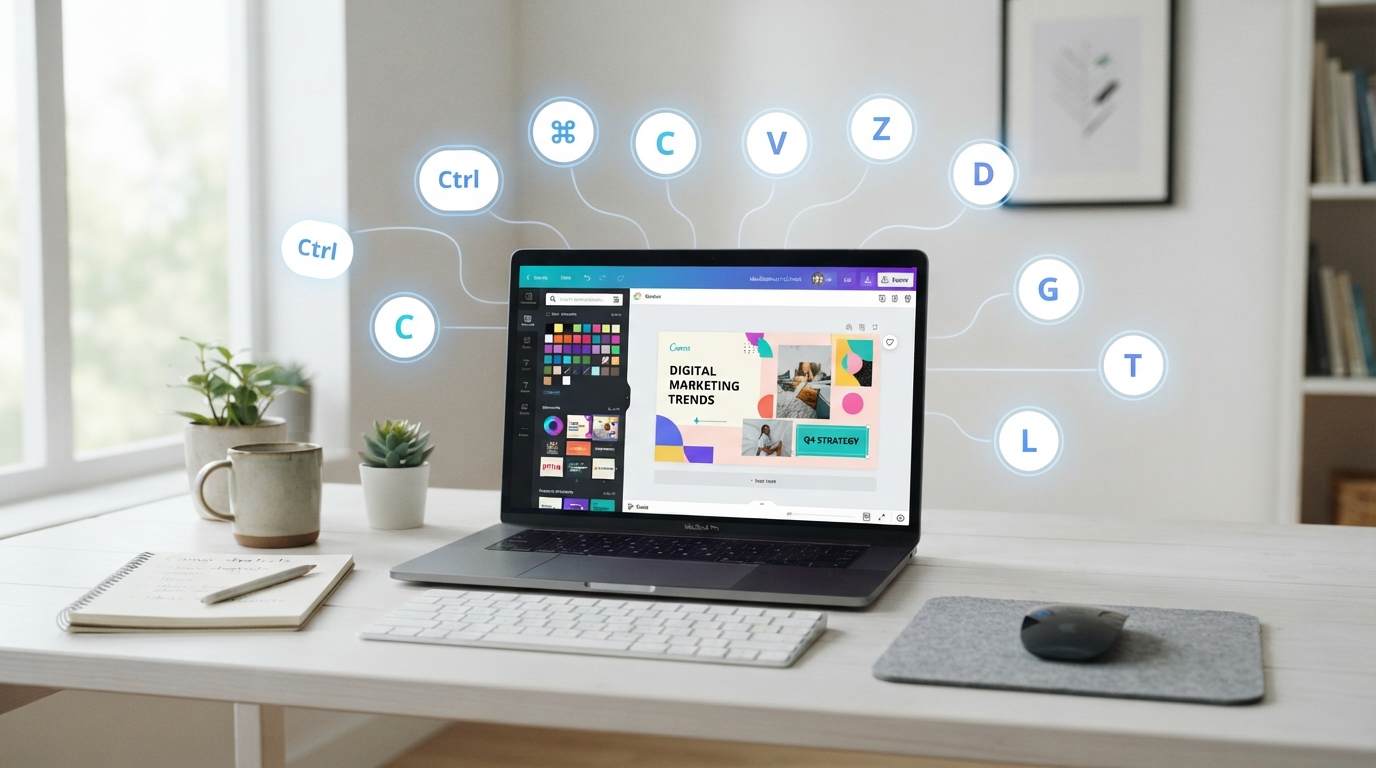
In this article, I have compiled more than 25 Canva keyboard shortcuts that you can use on Windows, Mac, and the web. Instead of just listing shortcut keys, I’ll tell you where to use them and how they will make your life easier, with real-life examples.
Canva Keyboard Shortcuts: Quick Answer
The Canva keyboard shortcuts are predefined keys that help you perform tasks without opening menus. These help you copy elements, duplicate designs, undo changes, group objects, zoom, and much more in no time. Even if you know a couple of shortcuts, they can help you a lot in your design work in Canva.
Reasons Why It Is Beneficial To Learn Canva Keyboard Shortcuts
Most individuals believe that keyboard shortcuts are relevant only to professional designers. The truth is, learning keyboard shortcuts is essential for everyone who designs from time to time.
Each click on the toolbar requires additional effort, which you may underestimate initially. However, it is important to realize that additional clicks accumulate throughout the project.
It is especially relevant for projects such as presentations with 20 slides or social media campaigns involving numerous images.
Keyboard shortcuts allow you to save many unnecessary actions.
Thus, you do not need to move your cursor across the page every several seconds; instead, you can concentrate on the design process. You will be able to streamline your workflow and make it faster.
As for me, the greatest benefit of using keyboard shortcuts was the lack of distraction while designing, since there was no longer a need to find buttons.
Saving a few seconds on every project will definitely make a big impact at the end of the week if you work on graphics regularly.
You May Also Like: How to Curve Text in Canva: 7 Common Mistakes and Easy Fixes (2026)
Who Should Learn Canva Shortcuts?
It should be noted that Canva is designed for everyone who creates graphics – whether or not you have any experience as a graphic designer. The same is true for Canva keyboard shortcuts.
Beginners
Canva keyboard shortcuts will help people who are just starting to work with this service develop good practices right from the start, because they will not rely on menus to perform all kinds of actions.
Students
Students usually work with Canva to create presentations, essays, posters, and infographics. There are many easy shortcuts,s such as copy, paste, duplicate, and undo, that will facilitate your work.
Teachers
Teachers regularly change their worksheets, classroom presentations, certificates, and other learning material. Redeploying the same design elements will be very simple thanks to the appropriate shortcut keys.
Content Creators
Whatever content creators do – they need YouTube thumbnails, Instagram photos, graphics for Pinterest, or blog images. Every moment spent editing instead of creating is saved because of keyboard shortcuts.
Freelancers
Projects for clients usually require several edits. Using keyboard shortcuts will help you duplicate layouts, arrange elements, and change designs without disrupting your workflow.
Owners of Small Businesses
The owners of small businesses who create promotional graphics, menus, flyers, or social media posts can quickly produce high-quality designs without sophisticated design software.
Canva Keyboard Shortcuts for Windows, Mac, and Web
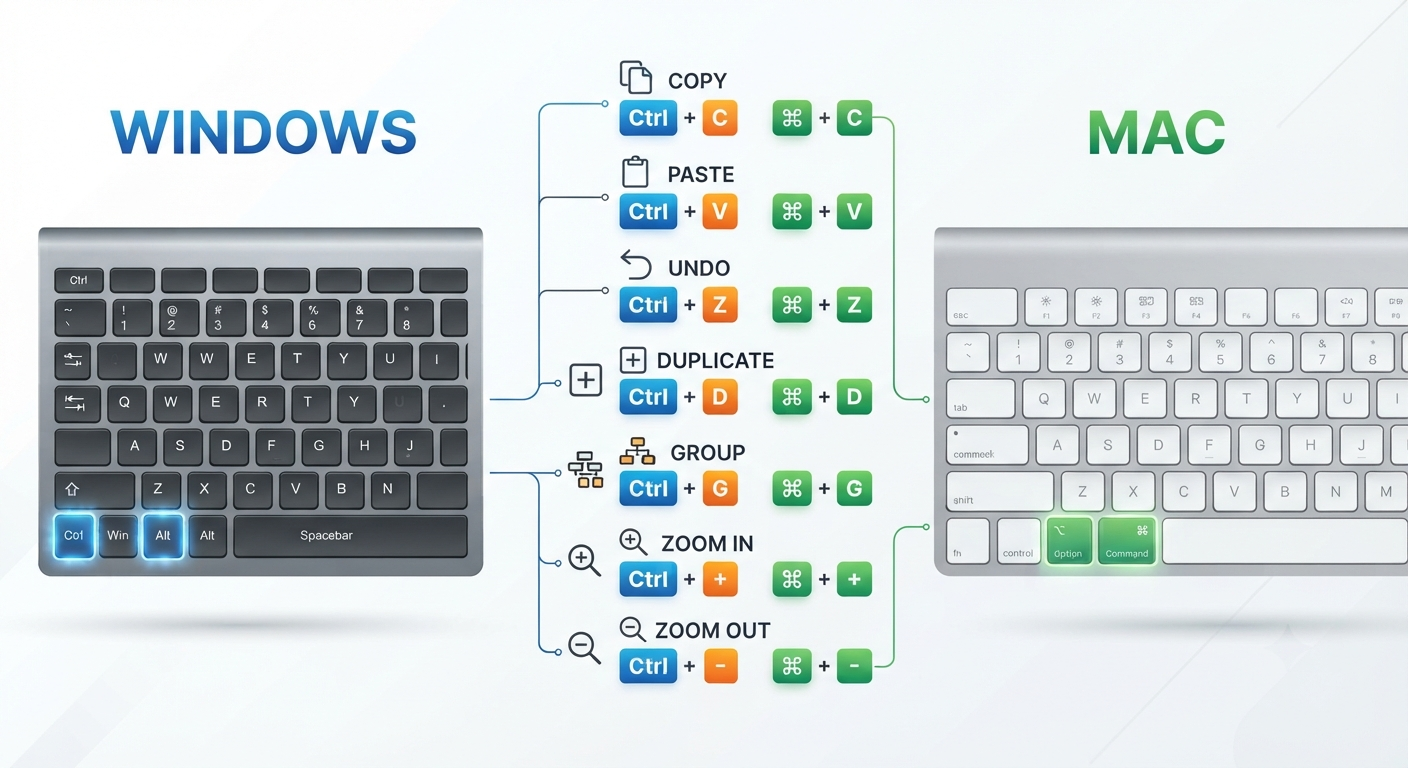
Most Canva shortcuts work almost the same across different platforms. The biggest difference is usually the modifier key.
| Action | Windows | Mac |
|---|---|---|
| Copy | Ctrl + C | Command + C |
| Paste | Ctrl + V | Command + V |
| Undo | Ctrl + Z | Command + Z |
| Redo | Ctrl + Shift + Z | Command + Shift + Z |
| Duplicate | Ctrl + D | Command + D |
If you use Canva in a web browser, these shortcuts work almost the same way because Canva supports standard keyboard commands in Chrome, Edge, Safari, and most modern browsers.
The only thing to remember is that some browser shortcuts may override Canva commands depending on your operating system.
25 Must-Know Canva Keyboard Shortcuts to Start With
There is no need to learn all the existing keyboard shortcuts. The following shortcuts cover most of the regular operations and can significantly boost your productivity.
1. Undo
Windows: Ctrl + Z
Mac: Command + Z
Everyone makes errors while creating designs. In case of accidental movement of some elements or deletion of something significant, you can easily go back to the previous action using the Undo shortcut.
Example in Real Life
When aligning text on a slide of my presentation, I tend to try out several designs and don’t worry about making mistakes; I use the Undo button.
2. Redo
Windows: Ctrl + Shift + Z
Mac: Command + Shift + Z
Redo will undo an undo, meaning it will undo the previous Undo.
The Best Times to Use It
If, after undoing many changes, you find that something looks better than before, you will not have to redo all the work; this function will help you.
3. Copy
Windows: Ctrl + C
Mac: Command + C
Copy will allow you to copy anything you choose without deleting the original.
Example In Real Life
To make sure all my designs for the same project look alike, I usually copy icons, text boxes, or logos.
4. Paste
Windows: Ctrl + V
Mac: Command + V
Paste is used to put in the copied element.
It is particularly helpful when making several pages with the same design because you don’t need to create it from scratch.
5. Duplicate
Windows: Ctrl + D
Mac: Command + D
With just one keystroke, you can duplicate your selected object.
Why Is It One of My Favourites
This is probably the most used shortcut. Instead of creating different elements, such as shapes, buttons, icons, and text on my YouTube thumbnails or blog images, I duplicate them because it helps me keep things consistent and save time.
6. Delete
Windows: Delete
Mac: Delete
Rather than dragging the unnecessary elements into the trash, you can delete them.
It may seem like a minor shortcut, but it makes your work easier when you need to clean up a complex design with many elements.
7. Select All
Windows: Ctrl + A
Mac: Command + A
The shortcut lets you select all elements on your page at once.
It comes in handy when you want to change the size, group all of your design elements or move your design.
8. Grouping Elements
Windows: Ctrl + G
Mac: Command + G
The grouping operation allows you to combine several selected elements into a single group.
Example
Consider creating a restaurant menu in which each item includes an icon, a name, and a description. Grouping the elements allows them to be moved together while maintaining perfect alignment.
9. Ungrouping Elements
Windows: Ctrl + Shift + G
Mac: Command + Shift + G
Ungrouping allows you to break apart elements that were previously grouped.
In this way, ungrouping is useful if you want to edit specific parts of grouped elements.
10. Zoom In
Windows: Ctrl + Plus
Mac: Command + Plus
Sometimes, tiny things matter a lot in your design. Zoom in to get your icons right, to set spacing correctly, and to properly align text.
Example in Real Life
When designing blog post feature images, I usually zoom in first and then check whether my icons align perfectly with my headline. An alteration that is hard to notice at normal size becomes very obvious when you look closely at the picture.
11. Zoom Out
Windows: Ctrl + Minus
Mac: Command + Minus
Zoom out to get an idea about the whole layout. This will help you see how things interact rather than looking at one element at a time.
I normally zoom out before exporting a design because it helps me notice spacing problems more easily.
12. Copy Style
Windows: Ctrl + Alt + C
Mac: Command + Option + C
Copy Style will help you copy formatting, such as colour, font, effects, or spacing, for any object.
When to Use It
When you have designed one heading and want the other headings to match it, using Copy Style will save you time instead of changing every setting.
13. Paste Style
Windows: Ctrl + Alt + V
Mac: Command + Option + V
Paste Style allows you to apply the copied formatting to another object without changing the object content.
This shortcut works great for designing presentations, reports, or any social media templates which need to be branded.
14. Bring Forward
Shortcut: Ctrl + ]
This keyboard shortcut brings the selected object one step forward.
Practical Example
For example, if you accidentally place your logo behind a shape, you do not have to go to the Positioning menu; instead, use a keyboard shortcut.
15. Send Backwards
Keyboard Shortcut: Ctrl + [
It moves the selected element back one level relative to the other elements on the canvas.
When there are many shapes, illustrations, and text boxes in your project, managing layers is very easy.
16. Bring to Front
Keyboard Shortcut: Ctrl + Shift + ]
For moving any object ahead of all other elements on the page, this keyboard shortcut can save several clicks.
17. Send to Back
Keyboard Shortcut: Ctrl + Shift + [
Ideal for putting background shapes behind text boxes, images, or icons.
18. Create a Text Box
Keyboard Shortcut: Press T
One of the easiest keyboard shortcuts in Canva.
Rather than selecting the Text panel each time, press T and create a text box right away.
As I do graphic design for blog posts, I need this all the time because the headline changes several times before I finalize it.
19. Create a Line
Keyboard Shortcut: Press L
Need a divider for your presentation or infographic?
Press L to create a line without going to the Elements panel.
20. Create a Rectangle
Keyboard Shortcut: Press R
Rectangles can be used as buttons, banners, labels, or colored backgrounds.
It will make creating layouts quicker.
21. Create a Circle
Keyboard Shortcut: Press C
Do you want to create an icon background or a decorative circle?
Press C and Canva will instantly add a circle.
22. Find Elements through Search Bar
Keyboard Shortcut: Press /**
Instead of manually searching through various categories, use this shortcut to find your icons, illustrations, stickers, or graphics.
23. Multi-Selection of Objects
Keyboard Shortcut: Select several objects while holding the Shift key.
This way, you’ll be able to edit them simultaneously.
If you have three icons that need to be the same colour or size, select them all.
24. Rotate Elements Exactly
Keyboard Shortcut: Rotate your element while holding Shift.
This way, Canva will snap the rotation angle for you, giving your layout a professional look.
25. Proportional Resizing
Keyboard Shortcut: Hold Shift while resizing your element from its corner handle.
Top Five Most Useful Canva Keyboard Shortcuts I Use
Having used Canva to create graphics for my blogs, social media posts, and tutorials, I use these keyboard shortcuts almost daily.
Duplicate
Copying the layout becomes way easier because I don’t have to redo the whole thing.
Undo
This is because design is a trial-and-error process, and I should be able to undo any errors.
Group
Grouping helps keep my layout organized and lets me move multiple objects at once.
Copy and Paste
These two are useful for maintaining consistent branding across multiple designs.
Text Shortcut
Although it may sound like a very basic shortcut, hitting T to open a text box right away really helps save time.
You don’t need to remember all the twenty-five shortcuts immediately.
You May Also Like: How to Choose the Best Canva Brochure Templates in 2026 (Real Business Examples)
Common Beginner Errors
Most Canva users know there are shortcuts available, yet they don’t use them effectively.
The first beginner error is trying to memorize all the shortcuts in a single day. This typically results in frustration. The right approach would be to concentrate on several shortcuts that apply to the work done the most frequently.
The second error occurs when one fails to select an object before using the shortcut. Commands such as Group or Duplicate won’t work unless an object is selected beforehand.
Users of Windows computers get confused about the difference between Ctrl shortcuts and browser shortcuts. In contrast, Mac users can mistakenly press the wrong key combination, which would be Ctrl rather than Command.

Canva Keyboard Shortcut Cheat Sheet
| Action | Windows | Mac |
|---|---|---|
| Undo | Ctrl + Z | Command + Z |
| Redo | Ctrl + Shift + Z | Command + Shift + Z |
| Copy | Ctrl + C | Command + C |
| Paste | Ctrl + V | Command + V |
| Duplicate | Ctrl + D | Command + D |
| Delete | Delete | Delete |
| Select All | Ctrl + A | Command + A |
| Group | Ctrl + G | Command + G |
| Ungroup | Ctrl + Shift + G | Command + Shift + G |
| Zoom In | Ctrl + Plus | Command + Plus |
| Zoom Out | Ctrl + Minus | Command + Minus |
| Text Box | T | T |
| Rectangle | R | R |
| Circle | C | C |
| Line | L | L |
Bookmarking or printing this table can save time whenever you need a quick reminder.
You May Also Like: Canva Background Remover: My Honest Review After Testing Canva AI (2026)
Keyboard Shortcuts Tips to Remember in Canva
It is much easier to learn any shortcuts by using them in practice.
Here are some practices that helped me:
- Learn five shortcuts each week instead of learning them all at once.
- Practice shortcuts by working on designs.
- Have a basic cheat sheet with shortcuts handy.
- Repeat those that you use frequently until they become automatic.
- Think more about improving your workflow than about remembering every single shortcut.
In no time, many shortcuts will be easy to remember.
FAQ
Does Canva Have Keyboard Shortcuts?
Canva has many shortcuts that let you edit and navigate designs quickly on Windows, Mac, and even on the web.
Do Canva Keyboard Shortcuts Work in the Free Version?
Yes. Most important shortcuts are available in both Canva Free and Canva Pro, as they are built into the editor itself rather than being premium features.
Is There Any Difference Between Windows and Mac Shortcuts?
No, most of them work the same way, except for one thing – on Windows, Ctrl is used, while on Mac, Command is used.
Can you personalize Canva shortcuts?
For now, there are no options to customize keyboard shortcuts in Canva.
Which Canva shortcut is the most time-saving?
The following shortcuts — Duplicate, Undo, Copy, Paste, Group, and Text — are among the most useful because they save time and apply to any design process.
Are keyboard shortcuts available in web browsers?
Yes, Canva offers shortcuts in the following browsers: Chrome, Edge, Firefox and Safari.
Conclusion
You don’t have to be a pro designer to learn how to use Canva keyboard shortcuts effectively. In my experience, even knowing a few of these keys can significantly change your workflow. Such basic things as duplicating objects, grouping, adding text, and undoing your actions become so easy to do that you won’t think about them anymore.
Start learning five useful keys that suit your kind of designs, and use them consistently for a week. Then add another shortcut to this list and so on. And very soon you will see that using Canva becomes easier, faster, and more pleasant.
If you’re creating presentations for school, graphics for your company, or pictures for your blog posts – learn these useful keyboard shortcuts, and you’ll work more productively without changing your workflow.
Important Note: This guide is based on my personal experience using Canva Keyboard Shortcuts across Windows, Mac, and the web while creating blog graphics, presentations, social media posts, and other everyday designs. Your experience may vary depending on your device, operating system, browser, keyboard layout, and the version of Canva you use. Since Canva regularly updates its features and shortcuts, some commands may change over time. I recommend checking Canva’s official website for the latest information. This article is published for educational and informational purposes only. Swisspik is an independent educational website and is not affiliated with Canva or any other brand. All trademarks belong to their respective owners.