
Introduction
Canva is my go-to platform for creating a range of design projects, including blog feature images, YouTube thumbnails, social media graphics, presentations, and marketing materials. Over the years, it has grown from being a mere drag-and-drop design platform into becoming a creative platform driven by AI. All upgrades have made designing easier, but Canva AI 2.0 seems more significant than previous updates.
After the launch of the latest Canva AI during Canva Create 2026, I decided to test whether the tool was truly useful and not just an accumulation of all the AI tools. While exploring the tools launched after the update and trying them out for actual design work, it became evident that Canva AI 2.0 does not focus on each tool individually but rather on completing an entire project from a single prompt.
Rather than switching between multiple applications for writing, designing, photo editing, creating presentations, and making videos, Canva AI 2.0 offers all these features in a single interface. This would be especially handy for creators, freelancers, students, educators, marketers, and small businesses looking to be more efficient without compromising on the quality of their work.
In this guide, you will discover what Canva AI 2.0 is, its launch schedule, its availability, pricing, and most importantly, which of its AI-powered tools are worth using at the moment.
Canva AI 2.0
Canva AI 2.0 is the latest version of Canva’s AI-powered tools, enabling users to create designs more quickly using natural language. Instead of having different AI functions spread across the platform, Canva AI 2.0 brings writing, photo editing, presentations, spreadsheets, coding, and graphic design into a single flow.
The difference between the new and previous versions is that Canva understands your entire creative request, rather than specific actions.
Previously, you had to say:
“Generate an Instagram caption.”
“Design an Instagram campaign for my cafe. It needs five images with captions, product mockups, and a presentation for my team.”
Now, you can say:
Canva AI creates your project using various tools at once.
You May Also Like: How to Use the Canva AI Video Generator to Create Stunning Videos (2026)
Reasons why Canva Created AI 2.0
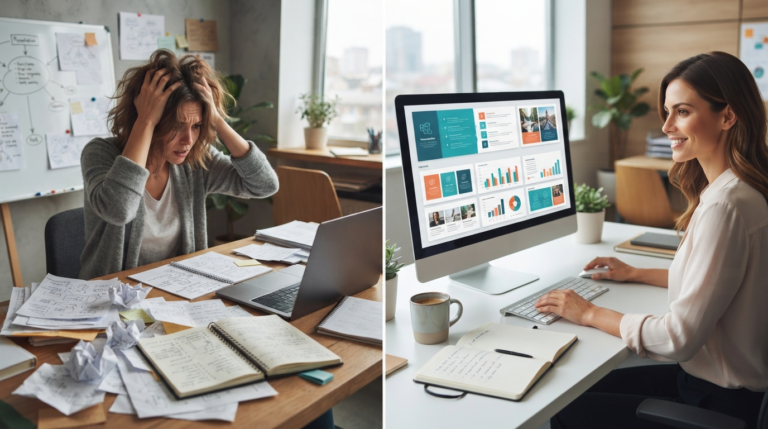
Though the popularity of AI-based software has increased significantly in recent years, there are many cases when a user has to use various programs to write, design, edit, and present their ideas.
Canva AI 2.0 helps solve this issue by providing a unified workspace where all the creative processes occur without leaving the editor.
Thus, for common users, Canva AI 2.0 saves time spent switching between apps and lets them refine their ideas instead.
Release Date, Release Process & Availability of Canva AI 2.0
Among the most frequent questions asked about Canva AI 2.0 is:
When did Canva AI 2.0 get released?
To answer this question, we can say that Canva released the updated AI tool in steps, rather than providing all the updates to everyone at once.
The latest AI version was introduced at Canva Create 2026, during which Canva presented several new AI tools, including Canva AI Chat, Canva Code, AI Spreadsheets, improved Magic Design, and the Visual Suite experience.
Canva AI 2.0 Rollout Timeline
| Stage | Status |
|---|---|
| Canva Create 2026 announcement | Completed |
| Research Preview | Started |
| Early user access | Rolling out |
| Wider public availability | Expanding gradually |
| Additional AI features | Ongoing throughout 2026 |
Given Canva’s millions of users worldwide, a gradual implementation will help ensure stability when introducing AI.
Just because you don’t have access to all Canva AI 2.0 features does not mean anything is wrong. This could be due to your account type, geographic location, or the feature being implemented.
Who Can Access Canva AI 2.0?
Availability varies depending on your Canva plan and the rollout stage.
Generally, users can expect different levels of access across the following plans:
| Canva Plan | AI Access |
| Free | Limited AI features |
| Canva Pro | Most AI tools with higher usage limits |
| Canva Teams | Collaboration-focused AI features |
| Enterprise | Advanced administration and team management |
| Education & Nonprofits | Selected AI capabilities depending on eligibility |
With continued product expansion, even more features may be enabled automatically, without the need for a separate download.
If you mostly work with Canva and only use it on rare occasions, the free subscription includes access to many AI tools. Yet users who regularly create marketing materials, videos, presentations, or other branded content will find a Canva Pro subscription useful.
Best Canva AI 2.0 Features
Canva AI 2.0’s major advantage lies not in individual features but in integrating multiple AI capabilities into a cohesive whole.
These features impressed me the most during testing.
Canva AI Chat
Canva AI Chat serves as a creative helper in Canva.
Instead of looking for templates manually, you can tell Canva what you need using natural language.
For instance:
“I want a product launch presentation in a modern style. It should consist of five slides using a blue and white design.”
In a matter of seconds, Canva offers you a base that you can further improve.
The feature was quite helpful to me when I had to come up with ideas, since there was no problem with a blank page. Instead of starting from scratch, I had a rough version that needed some editing.
Of course, the first version was not perfect. I usually had to adjust the layout, font, or image at least.
Canva Code
Surprisingly, one of Canva’s newest additions is Canva Code.
This tool is not about creating software; it lets users build interactive elements directly within the service.
With Canva Code, teachers can create quizzes, companies can build calculators, and marketers can create interactive presentations.
Although this tool cannot be used as an alternative to professional web development services, it helps to make interactive content creation more accessible.
Magic Design
It is clear that Magic Design has gotten smarter.
Now, Canva AI understands the overall project idea and can suggest various design solutions.
After uploading several product images to create a store, Canva suggested banners, social media posts, and even presentation slides, all based on a unified design.
The generated designs still needed editing, but they saved us a lot of time.
Magic Write
Magic Write remains one of Canva’s most useful AI tools.
It is capable of creating:
- Blog outlines
- Social media captions
- Product descriptions
- Emails
- Presentations
- Marketing materials
While I would not recommend using the tool without further editing, it performs perfectly as an aid for overcoming writer’s block and quickly creating initial drafts.
When blogging, I tend to rewrite parts of the article in my own voice to make it more accurate and distinctive.
AI Photo Editor
The improved AI Photo Editor is very handy for simple image editing.
The most useful updates that were added include:
- Background removal
- Objects cleaning
- Light adjustment
- Image enlargement
- Retouching
When tested on some product photos, it performed quite well.
The output quality was more than acceptable, even for social media and blog images without any other editing tools.
AI Video Generator
Video generation is also much easier now.
There is no need to create each and every shot individually, as Canva AI allows you to generate a video based on your prompt, thus making it helpful for:
- Marketing videos
- Explanatory videos
- Social media videos
- Promotion of products
Even though professional video editors offer greater control over the process, Canva significantly reduces the time required to create marketing videos
Canva AI 2.0 Pricing
The Canva AI 2.0 service comes with different pricing plans that offer varying levels of AI functionality based on your subscription.
While a free trial is a suitable way to test Canva AI’s capabilities, the Canva Pro service offers more comprehensive AI integration for those who frequently use Canva to create various marketing content.
| Plan | AI Features | Best For |
|---|
| Free | Limited AI tools and usage | Beginners and casual users |
| Canva Pro | Most AI features with higher usage limits | Freelancers, creators, marketers |
| Canva Teams | Shared AI tools and collaboration | Businesses and teams |
| Enterprise | Advanced security and team management | Large organizations |
Is Canva Pro Really Worth It?
In my experience, whether it is worth it depends entirely on how often you use Canva.
If you rarely design anything via Canva, then there really is no point in upgrading. However, if Canva is part of your daily work routine, Canva Pro will save you a lot of time.
For instance, whenever I was designing graphics for blogs or YouTube thumbnails, I frequently used the Magic Design, AI Photo Editor, and Magic Write options.
Canva AI 2.0 Hands-On Experience
After trying out Canva AI 2.0, my overall experience was good, though there is room for improvement.
The most significant change is the integration between its components. While previous versions of Canva AI had separate modules for writing or image generation, all these features are now integrated into a single workflow.
For example, I tried using Canva AI to generate marketing materials for an imaginary coffee shop using a simple prompt.
It took only a few minutes to generate:
- Presentation materials
- Social media graphics
- Copy for marketing materials
- Matching design suggestions
- This saved me quite a lot of setup time.
- Things I Like
- Brainstorming
- Improved recommendations for templates
- Consistent branding
- User-friendly interface
- Easy workflow even for beginners
- Areas for Improvement
Every artificial intelligence software has its issues.
Some of the generated texts were too generic, while some of the suggested designs did not match what I wanted. There were also cases when complex prompts needed multiple tries to get the results I expected.
So, I think of Canva AI more as a creative partner than as a substitute for it.
I would absolutely use it in my daily workflow, but I would still review and refine the final output before publishing.
Canva AI 2.0 vs ChatGPT, Adobe Express and Microsoft Designer
Every AI design platform has its own strengths.
Here’s how I think Canva AI 2.0 compares with some of the most popular alternatives.
| Feature | Canva AI 2.0 | ChatGPT | Adobe Express | Microsoft Designer |
| Ease of Use | ⭐⭐⭐⭐⭐ | ⭐⭐⭐⭐ | ⭐⭐⭐⭐ | ⭐⭐⭐⭐ |
| Templates | Excellent | Limited | Very Good | Good |
| AI Writing | Very Good | Excellent | Good | Good |
| Image Editing | Excellent | Limited | Excellent | Good |
| Presentations | Excellent | Good | Good | Limited |
| Video Creation | Very Good | Limited | Good | Basic |
| Collaboration | Excellent | Limited | Good | Good |
Which One Would You Pick?
Go with Canva AI 2.0 when you need a one-stop design station, including templates, presentations, images, writing, and collaboration.
ChatGPT is the best tool for tasks involving brainstorming, research, coding, or long pieces of writing.
Adobe Express is still a good choice for people who work in Adobe, while Microsoft Designer is best when you need basic graphics in tandem with Microsoft software.
Canva AI 2.0 would be the best choice for most people starting out.
You May Also Like: Canva Resume Templates: 10 Proven Resume Design Tips to Stand Out
Advantages and Disadvantages of Canva AI 2.0
Advantages
- Easy to use for novices
- Availability of various AI tools under one roof
- Designs created rapidly
- Great presentation capabilities
- Fantastic template selection
- Suitable for teams and organizations
- Time-saving for repetitive design work
Disadvantages
- Features are not completely available
- Content generated by AI may need editing
- Limited usage for some tools
- Complicated prompts may take multiple tries
- Experts may need advanced software for certain projects
How to Get More Out of Canva AI 2.0
Based on my experiment with various workflows, there are a few tips that will help generate better AI content.
Be Specific in Your Prompts
Do not write something like:
“Make a presentation”
Instead, you should specify your prompt:
“Make a presentation consisting of five slides for marketing of the coffee shop with modern colors and a minimalistic style.”
Specific prompts generally generate better results.
Start With the Template First
Instead of having AI generate everything from the start, use a Canva template and customize it with AI.
Check Everything
AI may significantly simplify the creative process; however, it is still necessary to check everything before publishing:
- Text
- Images
- Brand colors
- Layout
- Facts
Use Brand Kit
If you’re managing the brand either personally or business-wise, Brand Kit will help you keep your fonts, colors, and logos consistent throughout any AI-generated designs.
FAQs
What is Canva AI 2.0?
Canva AI 2.0 refers to the latest version of Canva, which uses AI to combine tools for writing, designing, creating presentations, editing images, and more.
Is Canva AI 2.0 free?
Canva AI 2.0 is free to use for some features. Some extra tools and higher limits will be available with other plans, including Canva Pro.
When did Canva announce its AI 2.0 platform?
The new platform was released at the Canva Create 2026 event, with gradual rollouts to follow.
Why don’t I see all the Canva AI 2.0 features yet?
There is a gradual rollout of all AI-related features at Canva. Some factors influencing availability include your account type, region, and specific feature details.
Can Canva AI make presentations?
Yes. With Canva AI, you can easily generate a presentation on a particular prompt provided to the system.
Does Canva AI generate videos?
Yes. One of Canva AI’s functions is video generation using prompts.
Can AI Canva replace graphic designers?
No. The application of Canva AI can be treated as productivity software that automates routine tasks and offers ideas, but not the creativity, strategy, or brand knowledge that professional designers provide.
Which one is better: Canva AI or ChatGPT?
It depends on the user’s personal needs. The Canva AI is good for visual design and creative projects, and ChatGPT is good for research, writing, brainstorming, and coding.
Is Canva AI dangerous to use?
Canva AI is developed with security in mind. Most likely, there will be no risks in using AI for creative purposes, but one should exercise caution and ensure that AI-generated content is accurate and complies with the organization’s privacy and copyright regulations.
Is Canva Pro worth it if I need AI?
Yes, if you often work on marketing materials, presentations, videos, etc., Canva Pro may offer more benefits due to its AI features and the AI limitations in the free version.
Final Conclusion
The new Canva AI 2.0 is one of Canva’s most exciting releases in recent times. Rather than including numerous AI tools in the app, Canva has opted to integrate a seamless process in which writing, designing, editing, and presentation all take place within a single platform.
In my opinion, the greatest strength of AI isn’t necessarily that it does everything but that it cuts out the redundant tasks, giving you time to perfect your concepts.
However, this means the most effective use of AI occurs when it is combined with human input.vv
Whether you’re a student, freelancer, content creator, marketer, teacher, or small business owner, Canva AI 2.0 can be an interesting tool for you to try out. The free version will be enough to see what it is all about, but Canva Pro will definitely be an attractive choice when AI design is part of your workflow on a regular basis.
As Canva continues to add new features to its AI service and launch it in other markets, the product will surely improve over time. Right now, it’s already one of the most user-friendly tools for AI design.
Canva and crunchyroll are the best thank you