
Introduction
Removing backgrounds from images used to be one of the most challenging parts of editing. Whether I was working on product photos, YouTube thumbnails, posts, or banner images, I sometimes had to switch between multiple editing programs to create a transparent background. While professional-grade software could deliver outstanding results, it required expertise and more time.
That is why I spent several days testing Canva Background Remover on portraits, product photos, logos, images with complex outlines, pet photos, and crowded backgrounds to see how well Canva’s AI performed, rather than relying on marketing promises alone.
Some results truly impressed me, while others showed that AI still has room to improve—and that this tool is not perfect.
In this review, I will cover exactly how Canva Background Remover works, when it shines, when it fails, and whether it is worth using in 2026. If you are wondering whether Canva can replace Photoshop for removing the background from an image, or whether you should consider purchasing Canva Pro, I have all the answers you need in this guide, based on real-life examples.
Irrespective of whether you are a beginner, content creator, freelancer, online seller, marketer, educator, or even a small business owner, I am sure that, in this guide, you will be able to make up your mind about Canva Background Remover.
Quick Verdict
Rating: 9.4/10
- Good for Beginners
- Content creators
- Bolggers
- Small businesses
- Freelancers
- Social media marketers
- Students
- Online sellers
Advantages
- Superb user interface
- Super-fast AI technology
- Works excellently with portraits and products
- Built into Canva
- Easy to use without any advanced editing knowledge
Disadvantages
- Requires Canva Pro for automatic background removal
- Hair and transparent objects sometimes require manual touch-up
- Sometimes not as precise as professional desktop editors
Quick Opinion
Overall, testing Canva AI across various image categories proved that this tool is one of the simplest background removers available for everyday use. The tool is not flawless, but it provides enough time savings in most design projects.
What Is Canva Background Remover?
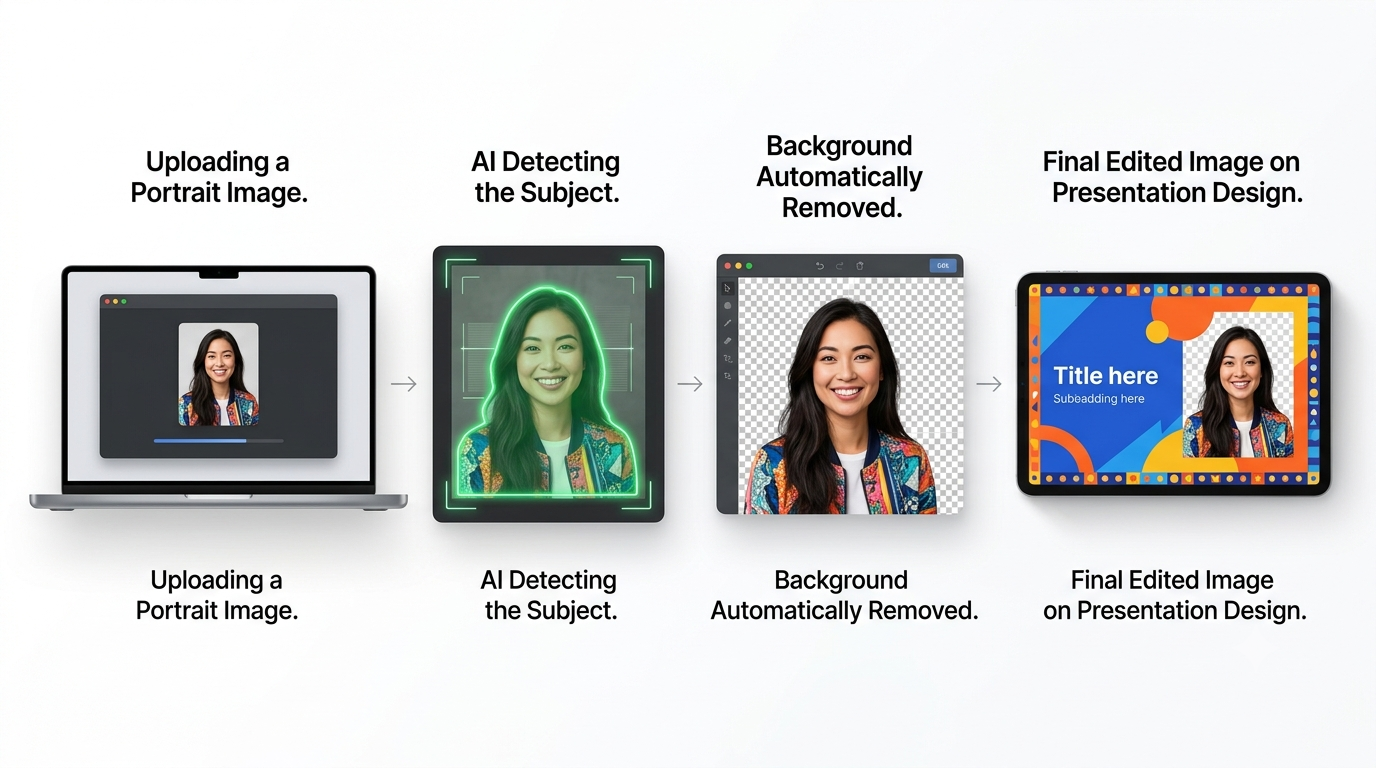
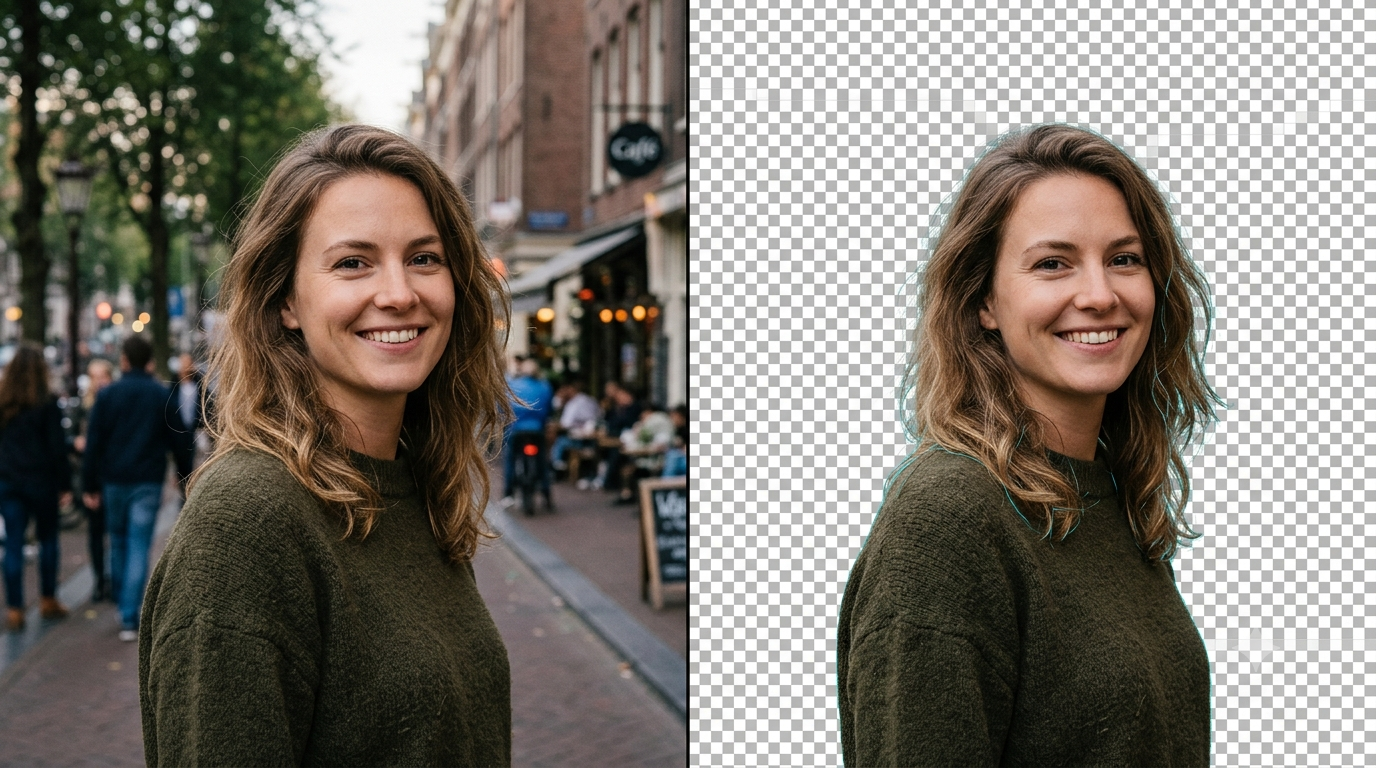
Canva Background Remover is an AI technology that automatically recognizes the subject in an image and separates it from the background with one click.
Instead of the manual process of edge selection, the program uses artificial intelligence to detect the picture’s subject and divide it into two parts – the subject and the background.
The outcome is a transparent PNG file suitable for presentation, YouTube thumbnails, social media posts, eCommerce product listings, resumes, advertisements, or marketing materials.
Unlike many other editing programs, Canva is aimed at simplicity. All you have to do is upload your picture, click Background Remover, wait a few seconds, and let Canva do the magic. If necessary, you can use the Erase and Restore brushes to enhance the results.
My Testing Approach
Instead of testing just one or two images, I decided to see how Canva AI works across a range of real-world cases.
For this purpose, I designed a small workflow that includes several types of images people often edit.
List of Images for Testing:
- Portraits
- Group shots
- Product pictures
- Shoes
- Watches
- Mobile phones
- Food pictures
- Company logos
- Cars
- Pets
- Plants and trees
- Pics with a messy background
- Pics with a clean background
- Images with shadows
- Images with fine hair
Every image was assessed for:
- Detection accuracy
- Edge quality
- Hair detection
- Processing time
- The necessity to manually edit the results
- Quality of the export
This way, I was able to gain much more comprehensive insight into Canva AI’s performance than with just one test image.
My First Impression
My first impression was that the process felt intuitive and easy.
- Unlike classic image editors, which are stuffed with complex tools, Canva keeps everything in one clear editor that is easy to understand, even for beginners.
- Uploading the picture took little time, keeping the setup simple.
- Once I opened the image, I only had to select the “Background remover” tool.
- When I pressed on it, Canva processed most of my images in just a couple of seconds.
- When it came to simple portraits, the accuracy level was surprisingly high.
The borders along the face, clothes, and the figure in general turned out smooth and clean, so no further adjustment was needed, making the result feel complete.

Canva Background Remover Steps for Beginners
If you are new to Canva, removing the background is easy.
Step 1: Import Your Image
- Log in to your Canva account.
- Create a new design there.
- Import the picture that needs the background removal.
Step 2: Choose Your Image
- Simply click on the imported image.
- This way, the editing toolbar will become available.
Step 3: Select the Background Remover
- Go to the Edit Photo option and click on Background Remover.
- The Canva AI will instantly analyze your image.
Step 4: Wait for AI Analysis
- In most cases, the background removal process finishes within a few seconds.
- However, it may depend on your Internet connection speed and picture size.
Step 5: Check the Image After Editing
Make sure the borders look fine.
Areas to check:
- Hair
- Fingers
- Glasses
- Shadows
- Accessories
In case of any inaccuracies, use Erase and Restore brushes.
Step 6: Export the Picture
- If everything is fine, just download the picture as PNG if transparency is needed.
- For beginners, the whole procedure usually takes less than one minute.
Accuracy Test Results
During my evaluation of Canva Background Remover on various images, I found that performance depends on image complexity.
Portraits
The most effective images were portraits.
The AI identified the face and clothes effectively, and little modification was needed.
Rating: 10/10
Personal Experience: Removing the background from the portraits helped me create perfect thumbnails for YouTube.
Product Images
Simple product backgrounds yielded excellent results.
I had no difficulty cutting out shoes, electronic gadgets, or accessories.
Rating: 10/10
Personal Experience: While editing product images for my client, I used Canva and achieved near-perfect results without needing to use Photoshop.
Logos
The AI performed extremely well on logos with single-color backgrounds.
The images obtained after removing the background appeared clean and professional in PNG format.
Rating: 10/10
Personal Experience: While creating my blog, I had no trouble removing the background from the logo.
Pets
Pet images were done well.
In some instances, fine fur images required manual fixing.
Rating: 8.5/10
Personal Experience: When testing an image of a dog, Canva did a great job, but slight modifications were needed using the Restore feature.
Hair
Hair images are still the hardest category for AI tools.
Straight hair was done better compared to curly or messy hair.
Rating: 8.5/10
Personal Experience: Images of curly hair required some manual adjustments, but with the Restore feature, it became easy.
Busy Backgrounds
Images with busy backgrounds, such as crowds or outdoors, presented the greatest challenge.
The subject was always detected correctly, but the edges needed correction.
Rating: 8.5/10
Personal Experience: When using an outdoor image with a busy background, Canva detected the subject well but required some edge corrections.
Transparent Objects
Transparent and reflective objects were the toughest category.
In some instances, the AI removed parts of the object along with the background.
Rating: 7/10
Personal Experience: During the testing of a glass bottle image, parts of the image were incorrectly removed.
Features I Liked Most
- One-Click Background Removal
- No complicated settings. Upload and click.
- Restore and Erase Tools
- Correction tools to fix any imperfections.
- Quick Image Processing
- Processing takes a few seconds.
Built-in Workflow
Switching between different tools is not needed. Everything can be done through Canva.
User-friendly Interface
Even beginners will not have problems learning it.
My Impressions after Several Days of Using Canva Background Remover
After testing the tool on several projects, I found myself using Canva Background Remover almost daily.
When it came to creating YouTube thumbnails, social media posts, presentations, blog images, product images, etc., Canva Background Remover helped save a lot of time.
Editing work that would previously have taken several minutes was completed in just a few seconds.
However, for more complex images that include details such as hair, transparency, or intricate borders, other advanced tools may be needed.
In summary, Canva Background Remover is a fast and user-friendly tool that works great for most everyday tasks.
Comparison of Canva Background Remover Free and Canva Pro
Among the most frequent questions asked by users is whether there is a free version of Canva Background Remover.
The answer is not entirely positive.
The AI Background Remover tool is mainly available to Canva Pro subscribers. If you use the free version of Canva, you can use most editing options, but not background removal.
| Feature | Canva Free | Canva Pro |
|---|
| AI Background Remover | ❌ | ✅ |
| Magic Eraser | Limited | ✅ |
| Magic Edit | Limited | ✅ |
| Magic Expand | Limited | ✅ |
| Premium Templates | Limited | ✅ |
| Brand Kit | ❌ | ✅ |
Is Canva Pro Worth It?
I believe yes, if you use Canva Pro often to design:
- YouTube thumbnails
- Images for e-commerce
- Social media graphics
- Marketing materials
- Business presentations
- Website banners
The time saved is worth it on its own.
Canva Background Remover vs Remove.bg
Many compare Canva with Remove.bg because both rely heavily on AI.
| Feature | Canva | Remove.bg |
| Background Accuracy | 9.4/10 | 9.6/10 |
| Ease of Use | ⭐⭐⭐⭐⭐ | ⭐⭐⭐⭐⭐ |
| Editing Tools | Excellent | Basic |
| Design Features | Complete | Very Limited |
| Templates | Yes | No |
| AI Editing | Yes | Background Only |
Final Verdict
The winner is Remove.bg if accuracy in background removal is what matters most to you.
Canva gives you the complete design experience, so you can edit right away without downloading the picture or opening a separate application.
That will matter to most people.
Canva Background Remover vs. Photoshop
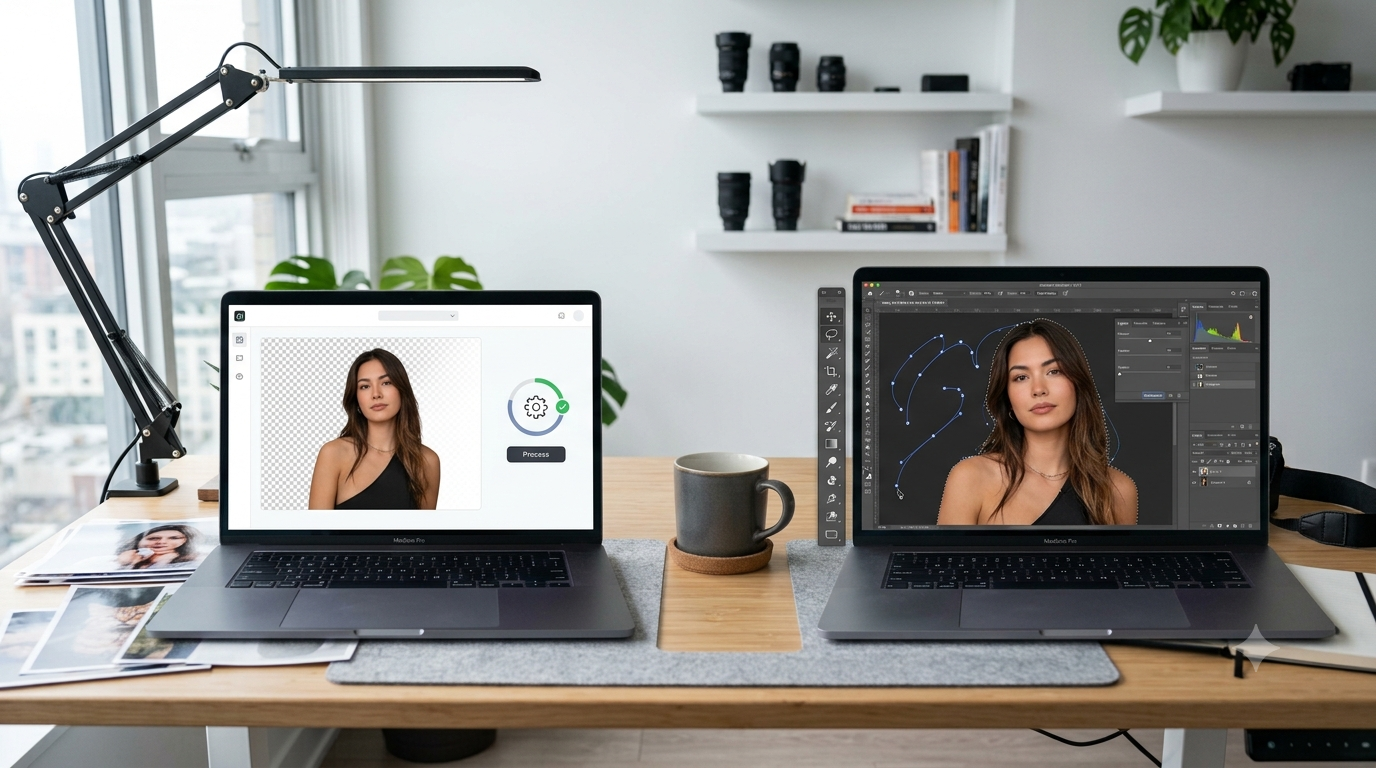
Photoshop is the professional tool here, but not everyone needs that level of power.
| Feature | Canva | Photoshop |
| Learning Curve | Very Easy | Difficult |
| AI Speed | Excellent | Excellent |
| Manual Editing | Basic | Advanced |
| Precision | Very Good | Outstanding |
| Best For | Beginners & Creators | Professional Designers |
My Experience
For day-to-day content creation, I never really felt constrained by Canva.
For professional photo retouching, advertisements, or images with highly detailed borders, Photoshop is better suited.
Real-life Examples
Making YouTube Thumbnails
One of my first tests was YouTube thumbnails.
The process of removing the background from the portrait took just a few seconds, enabling me to focus on text and color choices rather than manually creating a selection.
E-commerce Product Images
Professional-looking pictures help your store stand out from the competition.
I have tested watches, shoes, electronic gadgets, and other items.
Most of them had no issues with detection and were good to go for marketplaces, catalogues, and advertisements.
Social Media Graphics
Many Instagram posts and Facebook ads need their subjects isolated against a distracting background.
This task became very quick to complete in Canva, particularly for portraits.
Featured Images for Blog Banners
For blog banners, images with transparent backgrounds work best.
I did not need to search for PNG images in stock photo libraries; I removed the backgrounds myself and used them in Canva.
Features That Are Done Well by Canva
This was established after thorough testing of the application.
- Fast AI processing
- Simple UI design
- Good portraits
- Product image processing
- Excellent transparent PNG images
- Beginner-friendly workflow
- Integration with other Canva AI features
- Features Where Canva Needs to Improve
As with every AI feature, there are some flaws in Canva as well.
They include:
- Fine hairs get erased from the image if they are curly.
- Transparent objects continue to be problematic.
- AI cannot handle reflections from glass objects.
- Complex outdoor backgrounds have to be cleaned up manually.
- Detailed professional editing needs Photoshop.
These situations do not happen very often but are worth noting.
Tips to Make Your Work Better
I have identified a few small tips from my work that have helped me achieve better results.
Use High Resolution Images
High-quality images enable the AI to detect edges better.
Do Not Use Blurry Photos
Low-resolution images make it difficult for the AI to recognize the subject.
Use the Restore Feature
If Canva cuts off any part of the subject, it can be restored in just a couple of seconds.
Pay Special Attention to Hair
The hair is one of the most commonly edited parts.
Remember to always zoom in before downloading.
Export as PNG
PNG retains transparency, making the image easy to reuse.

Who Should Use Canva Background Remover?
According to my findings, Canva Background Remover will be a good fit for:
- Graphic Design Beginners
- Blogging
- YouTubing
- Freelancers
- SMBs
- Teachers
- Students
- E-commerce Businesses
- Marketing Teams
- Social Media Managers
If you need to create a lot of digital content fast, you will definitely like Canva.
What Other People May Need?
While Canva will work just fine for most people, some professionals will need more advanced software.
They include:
- Professional photographers
- Top-notch advertising agencies
- Professional photo retouchers
- Printing specialists
Photoshop is still better for them.
FAQs
Is Canva Background Remover free?
AI Background Remover is mainly available in Canva Pro.
Does Canva Background Remover work well?
Yes. In my tests, I’ve found it works fantastically with portraits, products, and simple backgrounds.
Can Canva remove backgrounds from logos?
Yes. Clean-cut logos should be processed without any issues.
Is Canva better than Remove.bg?
Remove.bg will be a tiny bit better if you only need to remove the background, but Canva is better for design and editing.
Can Canva remove complicated backgrounds?
Yes, but images with intricate backgrounds may need some tweaks.
Does Canva lower image quality?
Usually, image quality stays high after processing.
Can Beginners Use Canva Background Remover?
Yes, indeed. One of the simplest AI editors you can find.
Is Canva Pro worth purchasing for Background Remover?
If you do image editing for social media, ecommerce, YouTube, and business presentations, Canva Pro is worth the cost just for the time it saves.
Conclusion
After trying Canva Background Remover on different types of images, such as portraits, products, logos, pets, and difficult backgrounds, it can be said that Canva Background Remover does a great job in most of its claims.
It may not compete with desktop editing software everywhere, but it is perfect for most everyday design needs.
What was most surprising about Canva Background Remover was that, instead of spending several minutes manually selecting subjects, Canva AI did it all in just a few seconds. It could be enough to significantly increase the productivity of those who often edit images.
Still, it would be appropriate to maintain reasonable expectations. Fine hair, transparent objects, and difficult backgrounds will require manual work, but this is easily achievable with Canva’s simple tools.
While at it, it is worth remembering that realism is also essential, because fine hair, transparency, and complex background require some touch-up. Thankfully, Canva offers user-friendly editing options that make the whole process easy, even for a newbie.
If you already use Canva to create presentations, social media graphics, marketing materials, or YouTube thumbnails, you should definitely try Background Remover, one of the most useful AI features in the tool.
Final Rating
| Category | Score |
| Ease of Use | 10/10 |
| AI Speed | 10/10 |
| Accuracy | 9/10 |
| Beginner Friendly | 10/10 |
| Value for Money | 9/10 |
| Overall Rating | 9.4/10 |
For beginners, creators, freelancers, and small businesses, I would confidently recommend Canva Background Remover as one of the best AI-powered background removal tools available in 2026.
Important Note: This review is written by me after testing Canva Background Remover on various types of images, including portraits, products, logos, and images with complex backgrounds. Since each image will be different, the outcome of using this feature will depend on factors such as image quality, lighting, and background details. It is recommended that you test this tool before taking any final decision, using your images. Please visit Canva’s official site for accurate, up-to-date information on Canva tools and pricing, as these will continue to change. The links provided in this article are only for educational and informative purposes. Swisspik is an educational website and has no affiliation with Canva or any other brand.


Thanks 🫂